
How to Turn AI Into a Personal Assistant
Your Personal Helper
You learned how to give AI a clear request and how to turn your task into a repeatable workflow. However, a workflow can still feel like extra work if you explain the same preferences, attach the same files, and set the same rules every time.
A personal AI assistant reduces the repeated setup. It knows you: your preferences, your recurring job, your personal and work context. It follows your custom rules and uses the approved sources without you reuploading them. It keeps you in control of important decisions and external actions.
In this lesson, you'll learn how to set up your personal AI assistant to work even more effectively, removing the rest of the bottlenecks. Time to level up your productivity!
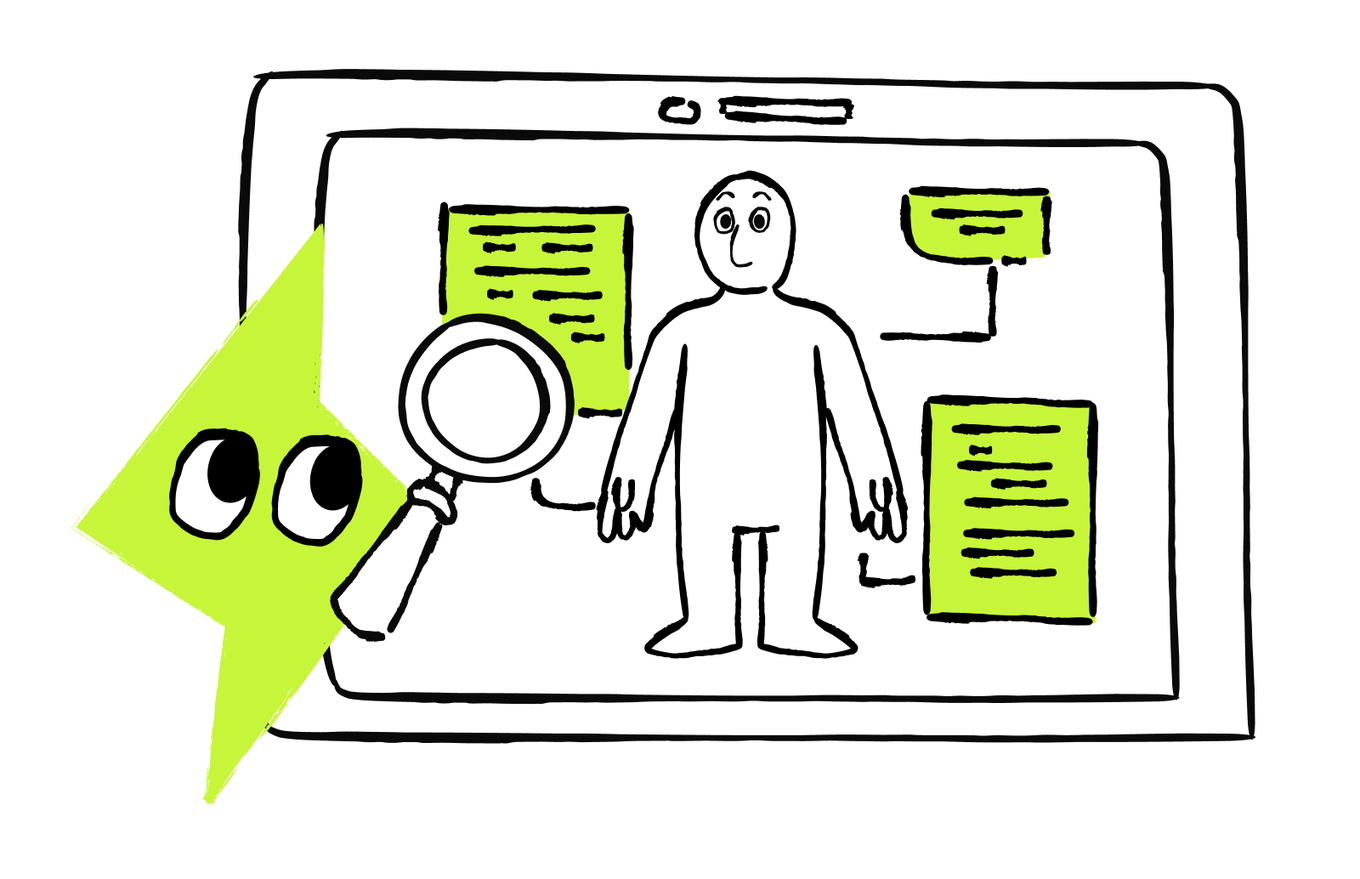
What Your Assistant Should Remember, Repeat, Retrieve, and Ask Approval For
A personal assistant makes a recurring task easier to start each time. Say you want AI to help prepare your weekly plan. Before choosing any features, make four decisions.
1. What should AI remember?
Keep stable preferences that help across many conversations, such as "Keep my plans brief and show deadlines first." Review them when they change. This week's meetings, deadlines, and task status belong in a current source.
2. What method should AI repeat?
Save the steps and checks you want AI to follow each week. For a weekly plan, it could review your open tasks and calendar, identify fixed commitments, flag conflicts or missing priorities, and draft a short plan with questions for you. The method and output structure stay reusable; the facts change each week.
3. What current information should AI retrieve?
The plan needs your latest calendar and task list. You can provide them each time or, where supported, approve access to a current source. The same applies to changing reports, cloud files, or documents in a selected folder. Get the latest information from its source instead of relying on an old version saved as memory.
4. When should AI ask for approval?
Decide what AI may prepare and where it must pause. It can draft a plan and point out conflicts, but it should ask before moving a meeting, changing a task, sending an invitation, or committing someone to a deadline. Access to a service does not by itself authorize those actions.
The scheme is simple: Remember stable preferences → Repeat the method → Retrieve current information → Ask before consequential actions.
Plan the Assistant's Job
Match each part of the weekly plan to the decision it answers.
These decisions describe the job. Now choose the smallest setup and explore AI features that support it.
Choose the Smallest Setup That Works
The setup shouldn’t be another pain in the neck — it should actually make your life and work easier. You don't need every single AI feature in one setup to make your assistant work. Choose the smallest combination that removes a real bottleneck.
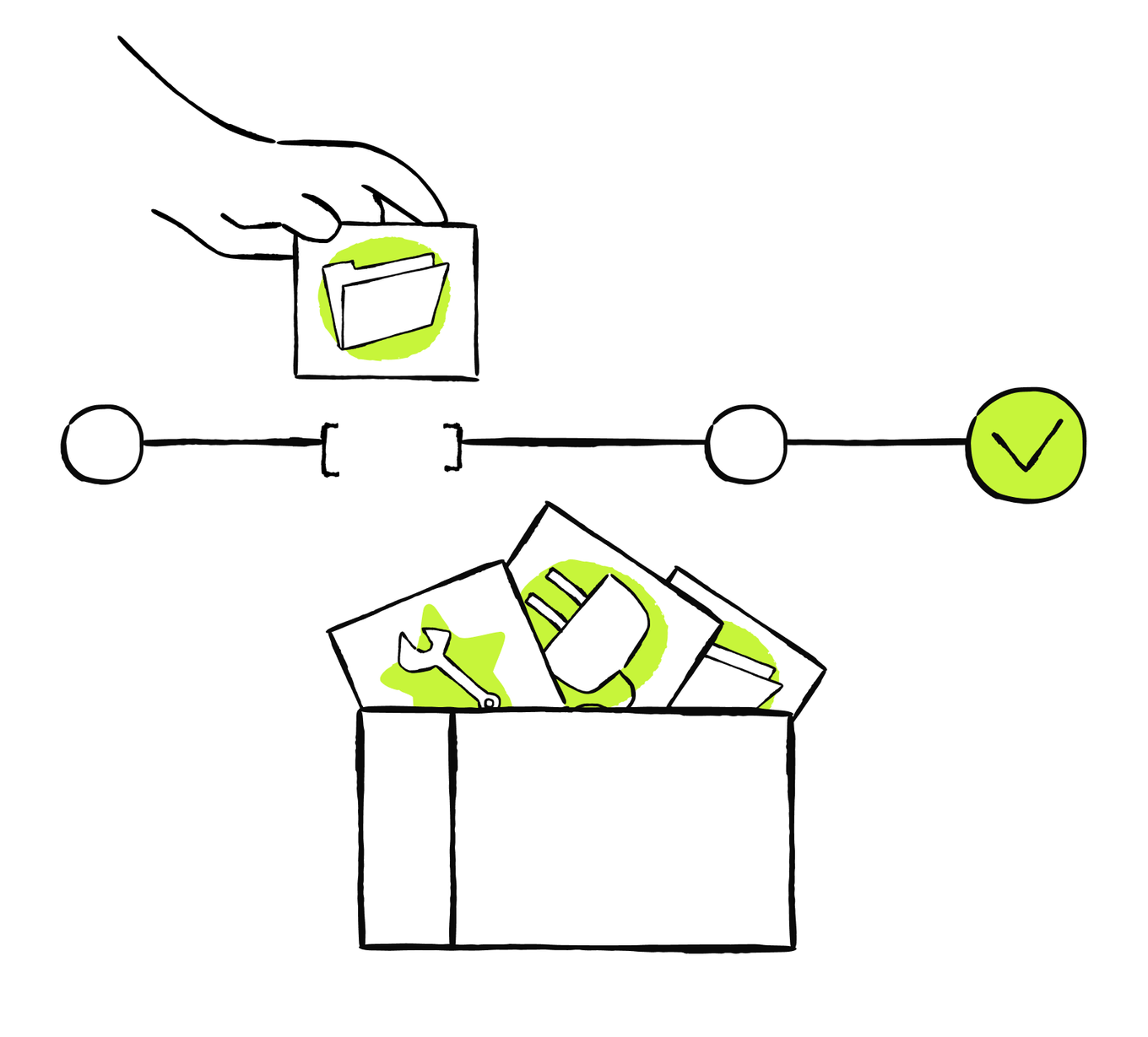
You can use this table to decide which setup will be the most suitable for your specific task. Note that AI tools use different names for their features, and their availability varies.
| If you want AI to... | Common setup | Example job |
|---|---|---|
| Remember a stable preference | Memory or global custom instructions | Prepare weekly plans in your preferred concise format without asking you to repeat that preference |
| Keep one area of work together | Project or workspace | Draft a project update using the reference files and instructions kept with that project |
| Repeat the same method | Reusable prompt, template, custom assistant, or skill | Turn each meeting's notes into a checked action list with owners and unresolved questions |
| Use current information from another service | Connected app or connector | Prepare this week's plan from the latest calendar and task list without copying them into the chat |
| Work with approved local files | Local workspace, where supported | Build a monthly expense summary from receipts in an approved folder without uploading each file |
| Add a packaged workflow or capability | Plugin, where supported | Sort a new batch of customer feedback into themes using a prepared workflow |
Start simple, and add the features for the setup as you work to reduce the repetition or manual copy-paste. For example, add a project when keeping related work together saves effort. Connecting a source when repeatedly copying its changing information becomes the bottleneck.
Keep the Setup Safe and Current
Try the assistant on a low-risk task before relying on it. Check that it uses the current source, follows the saved method, flags gaps, and pauses where you asked it to. As the task evolves:
- Limit access to the files, folders, services, and accounts it needs. Start with read-only access when it only needs to find or summarize information.
- Test file changes on copies and review the first results before allowing changes to important originals.
- Review saved instructions and connected sources regularly. Remove outdated material and access you no longer need.
The best setup is the one that removes repeated explanation without creating more maintenance. Start with the problem you feel most often, add the feature that solves it, and leave the rest out until you need it.
Set Up Your First Assistant
See How Your Assistant Prepares a Weekly Plan
For example, you want AI to help prepare your weekly plan. Define what it should do each time:
- Keep the plan brief and put deadlines first, as you prefer.
- Follow the same planning steps each week: identify fixed commitments, group open tasks, flag conflicts, and propose priorities.
- Use the latest calendar and task list you provide or approve for access.
- Ask before moving a meeting, changing a task, or sending an invitation.
You don't always need every layer. Add a feature only when it removes a repeated step.

How to Set Up Your Assistant
- Choose one task that you repeat often, or that takes too much effort.
- Decide what AI needs to remember, repeat, retrieve, or ask approval for.
- Add only the features that remove those repeated steps.
- Test the setup on a low-risk case and keep your approval before important actions.
Once this first setup works, you can improve it or add another task. You don't need to design your entire assistant at once.
The Assistant in Your Pocket
So how do you actually turn AI into your assistant?
You can assemble all the layers and features yourself. Set up everything manually. Or you can skip the setup and start using your assistant right away.
That's a wrap! Take a moment to appreciate how far you've come. You now know how to communicate clearly with AI, turn repetitive and demanding work into useful workflows, and set up an assistant that works for you. These skills can make your life and business simpler and more efficient, reduce the manual work on your plate, and give you more time and energy for the people, decisions, and goals that truly matter.

Next