
Scale, Monitor, and Repair AI Workflows
Turn a Successful Pilot Into a Reliable Workflow
Your pilot showed that the AI workflow can work for a defined set of cases. If it met the success and stop rules you set before testing, you have evidence to start using it more broadly.
But scaling changes the conditions around the workflow:
- More cases can introduce new formats and exceptions.
- More people can create new handoffs and review queues.
- New teams or locations may need different permissions.
That’s why it’s safer to scale gradually. Expand one thing at a time — such as volume, users, or teams — and keep the last proven setup available as a fallback.
In this lesson, you’ll turn the decisions you made for a pilot launch into an AI Workflow Operations Plan. It will show how the workflow runs in everyday use, how you’ll monitor it, how you can expand it safely, and what to do when something changes or goes wrong.
You’ll also update your Automation Opportunity Map to track the status, ownership, shared dependencies, and next decisions across your AI workflows.
Build the Plan
You tested the workflow. Now you need a clear plan for how it should run in everyday use — who owns it, what to monitor, and what to do if something goes wrong. This is your AI Workflow Operations Plan.
Note that it’s important to state a workflow owner. The workflow can involve several people, tools, or connections, but one named person should own the workflow's business result.
Now you’re ready to start building your AI Workflow Operations Plan. For a small workflow, this plan may be a single table owned by one person. It doesn't need to become a large operations document. You can use this template:
| Operations Plan section | What to record | Your entry |
|---|---|---|
| 1. Current workflow and boundary | Trigger, included cases, approved inputs, and completion check | [Add from your tested pilot] |
| 2. AI and human work | AI steps, tool handoffs, human decisions, and accountable owner | [Add from your tested pilot] |
| 3. Checkpoints | Next expansion, limits, decision owner, and previous reliable process | [Complete later in this lesson] |
| 4. Health measures | Signals, thresholds, evidence sources, owner, and review schedule | [Complete later in this lesson] |
| 5. Recovery rules | When to contain, diagnose, repair or substitute, retest, and resume | [Complete later in this lesson] |
| 6. Current decision | Whether to continue, adjust, pause, roll back, substitute, or retire, plus the next review | [Complete at the end of this lesson] |
Fill the first two rows now using the workflow decisions and controls you tested in the pilot. By the end of this lesson, you'll have the information needed to complete every remaining section of the plan.
Scale One Change at a Time
Changing several parts of the workflow at once makes the result hard to understand. If quality drops after you add more documents or broader access, you won't know which change caused the problem. Expand one main condition, check the result, and then decide whether the workflow is ready for another change.
State a certain checkpoint before the workflow expands. It’ll keep each expansion small enough to understand and reversible enough to stop.
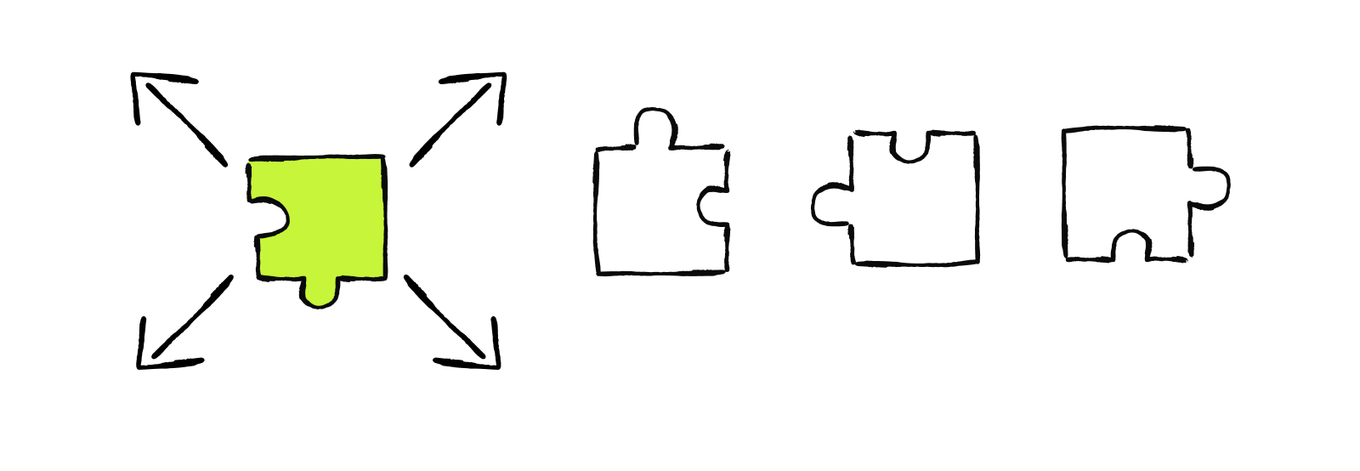
For example, the workflow can use three checkpoints. Each stage changes one main condition and keeps the previous working version available:
| Stage | One main change | Evidence needed before the next stage | If the stage fails |
|---|---|---|---|
| 1 | Process more of the two tested formats | Quality, review time, safe stops, and exception workload stay within limits | Return to the pilot volume |
| 2 | Add one new document format | The new format passes normal, corner, and deliberately invalid cases | Pause the new format only |
| 3 | Add a second team | Access, training, review ownership, and enough time and capacity to handle exceptions are ready | Keep the workflow with the first team |
Before each stage, the people involved should know what AI handles, which decisions remain theirs, where exceptions go, and how to stop the flow. A workflow isn't ready to expand if reviewers lack the time, information, or authority to control it.
A supplier-invoice workflow passed its pilot on digital PDFs and scanned images. Which first checkpoint gives the clearest evidence for scaling?
Add the checkpoint to your Operations Plan: the next expansion, the evidence that must stay within its limits, the decision owner, and the previous working version to use if the stage fails.
Define What a Healthy Workflow Looks Like
A checkpoint tells you when to expand. Health measures tell you whether the expanded workflow is still working.
A workflow is healthy when it continues producing the intended business result within its quality, risk, cost, reliability, and human-work limits. For example, the workflow could improve speed and you can use it quite often. This data can inform the judgment of the workflow’s health, but the usage and speed can't determine it on their own.
For the health-check, use the baseline and measures you confirmed during the pilot testing. Consider these signals needed for ongoing operation:
- Outcome shows whether the process reaches the result it was designed to improve.
- Quality and risk check correct outputs, missed problems, false flags, exceptions, and whether required human decisions still happen.
- Efficiency and cost include the time and money used by tools, connections, reviews, corrections, and incident recovery.
- Reliability checks whether triggers, data sources, connections, tool handoffs, pauses, and escalations work as expected.
- Human workload shows whether exception queues, overrides, workarounds, or repeated checking are growing.
These signals are useful only when the team knows when to review them and which results require action. A health check creates that routine, while thresholds turn changes in the evidence into clear decisions.
Run health checks on the agreed schedule and after a meaningful change or incident, such as a new input format, process rule, permission, connection, tool, or sudden rise in overrides. For an agentic flow, inspect its selected actions, retries, pauses, and escalations as well as its final output.
Find What Broke and Make a Decision
When you notice the workflow is broken and a signal crosses its threshold, start with "Which part of the workflow no longer behaves as expected?" Don't begin with "Which AI tool should replace this one?"
1. First check the process, inputs, and instructions. A business rule may have changed. A source may be missing, stale, or formatted differently. An instruction may send a case down the wrong path.
2. Then check permissions and connections. The workflow may no longer have approved access, or a trigger or handoff may not deliver the required information.
3. Finally, check tool capability and people's workload. The tool may not reliably support a new case, or reviewers may not have enough capacity for the current volume.
Multiple causes can be present, so follow the evidence rather than stopping at the first plausible explanation.

Match Each Signal to the First Area to Check
Connect each workflow signal with the most likely starting point for diagnosis.
These matches show where to investigate first, not a guaranteed root cause. Check the highest-consequence signal quickly, then compare evidence across the complete workflow before deciding what to change.
Use the health signal to choose the most relevant area to check first:
- Workflow rules, inputs, and instructions: Check whether a rule changed, information is missing or outdated, or an instruction sends cases down the wrong path.
- Permissions and connections: Check whether approved access, triggers, sources, or handoffs still work.
- Tool capability: Check whether the tool can reliably handle the affected case or format.
- People and workload: Check whether reviewers have enough time, information, and authority for the current volume.
Several changes can happen together. Start with the area most closely connected to the signal, then inspect the complete workflow if the cause remains unclear.
Decide What To Do Next
You have several options for what to do with the broken workflow after diagnosing it and identifying the root cause.
- Pause: Temporarily stop affected cases while you investigate the problem.
- Roll back: Return affected work to the last reliable process.
- Repair: Correct a problem in the current workflow setup.
- Reduce the scope: Continue only with cases that remain reliable.
- Substitute: Replace a failing component or tool when the evidence shows a specific capability or reliability gap.
- Retire: End the automation when it no longer provides enough value or can't be operated with reliable control.
After a repair, reduced scope, or substitution, retest the relevant cases. Resume the workflow only when it meets its health limits, and its stop rules work as expected.
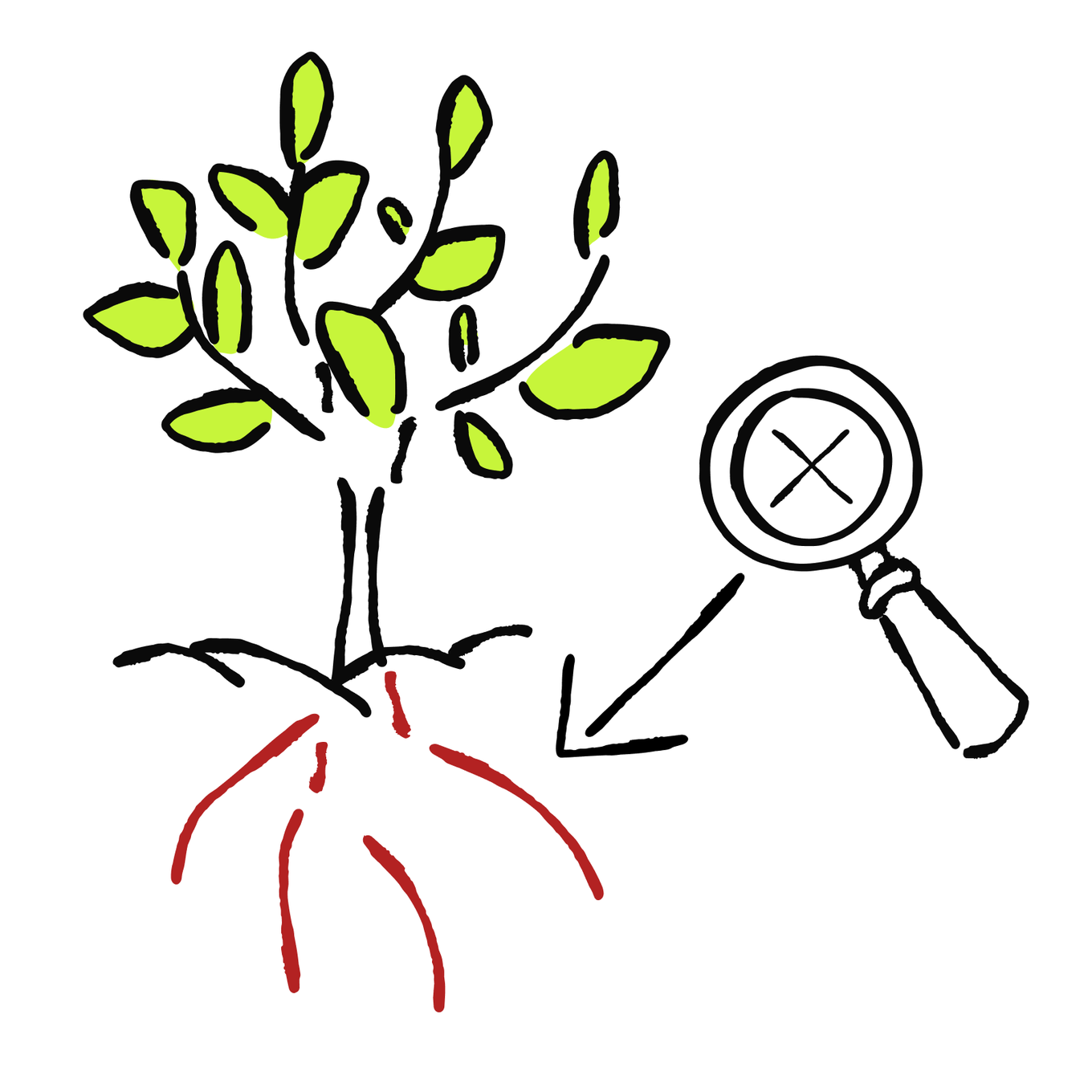
Now arrange the recovery steps from diagnosis to the final operating decision.
Put the Recovery Steps in Order
Arrange the steps from diagnosis to the operating decision.
- Diagnose the failure using workflow evidence
- Decide whether to resume, keep a reduced scope, roll back, make another change, or retire the workflow
- Retest the relevant normal, corner, deliberately invalid, and excluded cases
- Choose and apply the smallest suitable change

Complete the Recovery Rules section of your Operations Plan. Record what stops the affected work, which evidence helps locate the failure, when to repair, reduce the scope, substitute, roll back, or retire, which cases must be retested, and what must be true before the workflow resumes.
Keep the Workflow System Worth Running
If you operate only one AI workflow, keep using its Operations Plan. Once you operate two or more workflows, add a compact Workflow System View to your Automation Opportunity Map. Two workflows may look healthy on their own while creating a problem together. They may overload the same reviewer, rely on the same unreliable connection, duplicate work, produce conflicting actions, or quietly increase total subscription and maintenance costs. Therefore, you need to check their health condition as a whole system.
Create the Workflow System View as a separate tab in your Automation Opportunity Map. Use it to compare scope, setup, status, ownership, shared dependencies, and review timing across workflows. It doesn't replace the individual Operations Plans.
Together, these workflows form a workflow system. They may share tools, connections, data sources, approval rules, reviewers, and exception queues.

The system view stays compact. Keep the detailed controls in each workflow's Operations Plan. In the map, record only the information needed to compare workflows and make operating decisions. You can use this template:
| Workflow and automated scope | Setup: automation layer, flow, and tool arrangement | Current stage or decision | Owner and shared dependencies | Review timing |
|---|---|---|---|---|
| Supplier-document checks: extract fields → compare approved records → finance review | AI handles the part of the process; fixed flow; controlled handoff between tools | Operating; new format paused | Finance lead; supplier records and finance review | Weekly and after a format or connection change |
| Inventory recommendations: combine stock and sales data → prepare reorder recommendation → inventory approval | AI assistance; fixed flow; one primary tool with approved connections | Pilot | Operations lead; supplier records and inventory approval | After the pilot window |
| Project updates: collect approved status records → draft update → manager review | AI assistance; fixed flow; one tool for the flow | Operating | Project lead; project records and team-lead review | Monthly |
If two rows name the same data source, connection, tool, reviewer, or approval step, you can see where one change or capacity problem may affect more than one workflow.
Use a short system review:
- Check the status, owner, next decision, and next review for every active workflow.
- Look for shared tools, sources, connections, reviewers, approvals, and combined human workload.
- Check for duplicated work, conflicting outputs, unused subscriptions, or shared rules that have changed.
- Decide what should change, retest every workflow whose boundary is affected, and update its Operations Plan and System View row.
Each workflow is meeting its own quality limits. Which signs show that the workflow system still needs attention?
That’s A Wrap
By now, your Operations Plan contains the operating setup, scale gate, health measures, and recovery rules you added throughout the lesson. Finish it with the current operating decision and next review point. Then add or update that workflow's row in the Workflow System View.

You now have a complete business automation roadmap: an Automation Opportunity Map for the system and an AI Workflow Operations Plan for each operating workflow.
The Opportunity Map also becomes the overview of your workflow system, while each operating workflow keeps its own detailed plan. Together, they help you choose useful automation, target the real problem, test a controlled setup, and keep the full system valuable as the business changes.
This completes "AI Business Automation." Your connected artifacts now form a practical method you can reuse whenever a process changes or a new automation opportunity appears.
Next